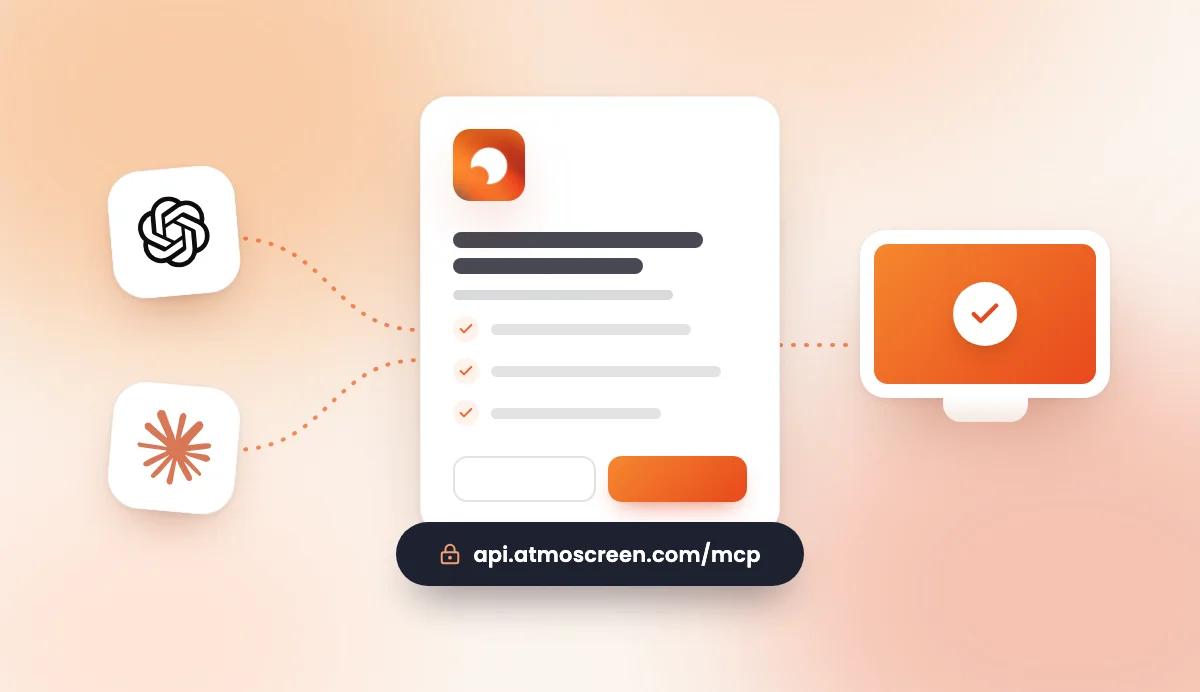
Until now, updating the waiting room screen meant opening the dashboard, finding the right diffusion and editing the slides one by one. Not anymore: AtmoScreen now connects to ChatGPT and Claude. You type one sentence, the assistant prepares the diffusion and sends it to your TVs. Here is what changes, what you can ask for and how your account stays protected.
What changes for your waiting room screen
A waiting room screen is only useful if it is up to date. Yet in a practice or a pharmacy, nobody really has time to think about it between two patients. The result: the weather still shows the wrong city, the August bank holiday closure notice is still looping in September, and the screen ends up being ignored.
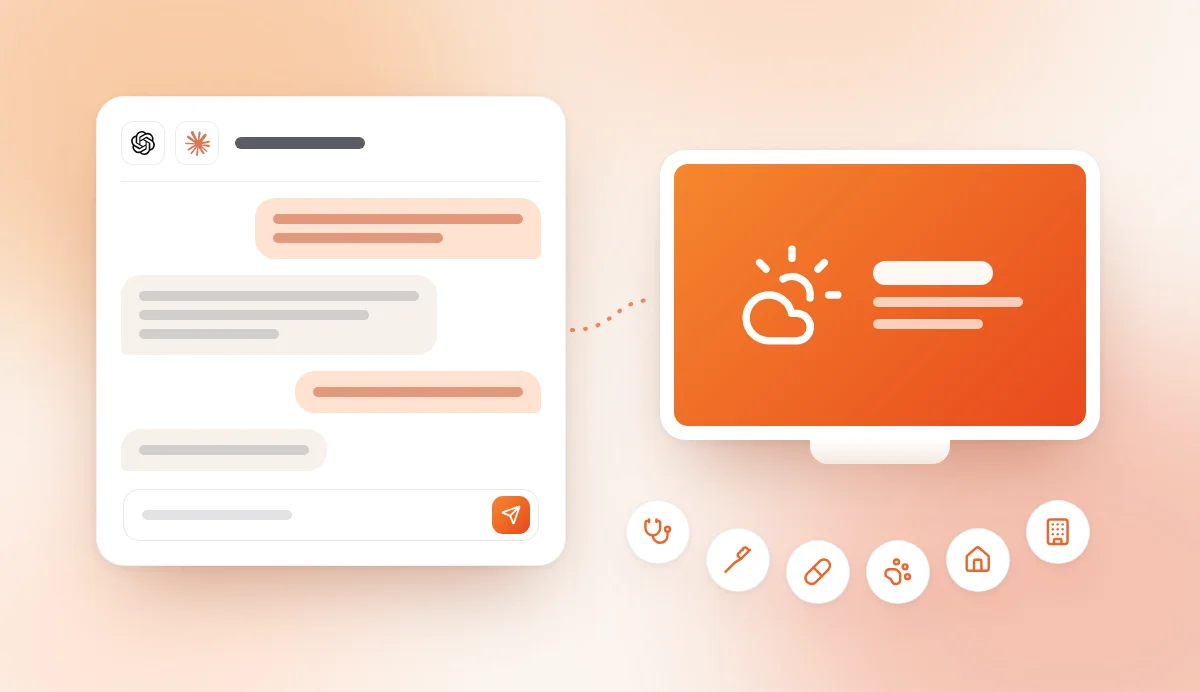
With the ChatGPT and Claude connection, an update takes one sentence, typed from the front desk computer or from your phone:
Add a slide saying the practice is closed on November 1st.
The assistant finds the diffusion playing in the waiting room, adds the message in the right place, saves the new version and confirms what it did. The TVs concerned show the change within seconds, without you touching the remote.
In practice, AtmoScreen is still the tool that runs your screens. ChatGPT and Claude simply become another way to manage it, in plain language, in English or in French.
What you can ask ChatGPT or Claude
Once AtmoScreen is connected, the assistant has five actions on your account. It combines them on its own, depending on what you ask.
See your screens
Which screens are online, which are offline, and which diffusion each one shows. Handy to check at a glance that the waiting room TV is running, without getting up.
Review your diffusions
The list of your diffusions (your playlists of slides) with the content of each slide, in order, and the screens showing them. This is what lets the assistant edit an existing diffusion without losing anything.
Create a diffusion from a description
Describe what you want to show and the assistant assembles the slides:
- the weather for a city;
- messages: welcome notes, practical information, prevention tips or quotes;
- a team presentation;
- a QR code to your booking page, your website or a form;
- a quiz on general knowledge or health prevention, with three possible answers;
- films now showing in cinemas in your city.
It also sets how long each slide stays on screen if you say so (for example "20 seconds per slide").
Edit a diffusion
Rename a diffusion, add or remove a slide, change a message, reorder the playlist. The assistant first reads the diffusion, then saves the complete updated version.
Put it on one or more screens
Choose which diffusion plays on which screen: the waiting room, the front desk, the shop window. The other screens stay as they are.
Why it matters in a busy practice or pharmacy
The main obstacle to digital signage is not technical, it is time. Managing it from an assistant changes three things day to day.
- Fewer clicks, fewer oversights. An unexpected closure, a locum, a vaccination campaign: you say it the way you would write it in an email, and the screen follows.
- Better-written content. The assistant rewrites your messages so they are short and readable from three metres away, suggests quiz questions suited to your patients and varies the wording.
- An instant overview. "Which screens are offline?" is enough to find out whether a TV was unplugged by the morning cleaning.
For a medical receptionist juggling the front desk, the phone and patient files at the same time, the difference is clear: the screen becomes a living tool again instead of a frozen decoration. If you are looking for content ideas, our article on the most effective waiting room content is a good starting point, and we have gathered ready-to-copy prompts by sector.
Security: what the assistant can and cannot do
Connecting a business tool to a conversational assistant raises legitimate questions. We made cautious choices.
You give your consent explicitly
The connection goes through the usual AtmoScreen sign-in page. Once signed in, you see an "Allow ChatGPT to access your AtmoScreen account?" screen (or Claude) listing exactly what the assistant will be able to do: see your screens and what they show, see, create and edit your diffusions and their slides, assign a diffusion to your screens. Nothing happens until you click Allow.
It only acts when you ask
The assistant does not watch your account in the background. It looks at your screens and diffusions when you ask a question.
No deletion, no access to your payments
The assistant can't delete your account, your screens or your diffusions. It has no access to your payment details or your password.
Your plan's limits apply
The Starter plan includes 1 screen, 1 diffusion and the essential templates (weather, messages, team, photos and videos). The Premium plan goes up to 10 screens, 10 diffusions and every template, including the QR code, the quiz and cinema listings. If a request goes beyond your plan, the assistant explains why instead of forcing it.
You can cut access at any time
In your assistant's connector settings, one click on Disconnect is enough: the assistant loses access to your account immediately.
An important reminder: the information AtmoScreen returns to the assistant (screen names, slide text) is processed by OpenAI or Anthropic under their own terms. Never put health data or information about your patients in your slides or in your requests.
How to get started
You need an AtmoScreen account with an active subscription or the 7-day free trial, and at least one paired TV.
- Create your account and pair your TV (Android TV, Google TV, Fire TV Stick or a web browser).
- Connect your assistant by following the guide: AtmoScreen in ChatGPT or AtmoScreen in Claude. It takes about two minutes.
- Ask your first question, for example: "Which AtmoScreen screens are on?"
In Claude, AtmoScreen is available in the official connectors directory: open Settings, Connectors, then search for "AtmoScreen". It's coming to the ChatGPT apps directory soon; in the meantime, you connect it by adding the AtmoScreen server address as a custom app. We cover every step in our step-by-step connection guide.
Frequently asked questions
Do I need a paid ChatGPT or Claude plan?
In Claude, you add AtmoScreen from the connectors directory. In ChatGPT, adding a custom app currently depends on the options of your plan. The connection guides show where to find the setting.
Can I add photos or videos from the conversation?
Not yet. Photos and videos are added in the AtmoScreen app. The assistant can then keep them in your diffusions when it edits them.
Can the assistant make mistakes?
It always tells you what it changed. Read its answer, and if the result isn't right, just ask it to fix it: "Put the old welcome message back". Everything can also still be edited in the app.
Does this replace the AtmoScreen app?
No. The app is still where you pair your TVs, manage your subscription and upload your media. The assistant is a shortcut for day-to-day content.
Try it today
- Follow the connection guide for ChatGPT or for Claude.
- See our prices and plans to choose between Starter and Premium.
- A question about your setup? Contact our team.
- Or start your 7-day free trial and connect your assistant right after.