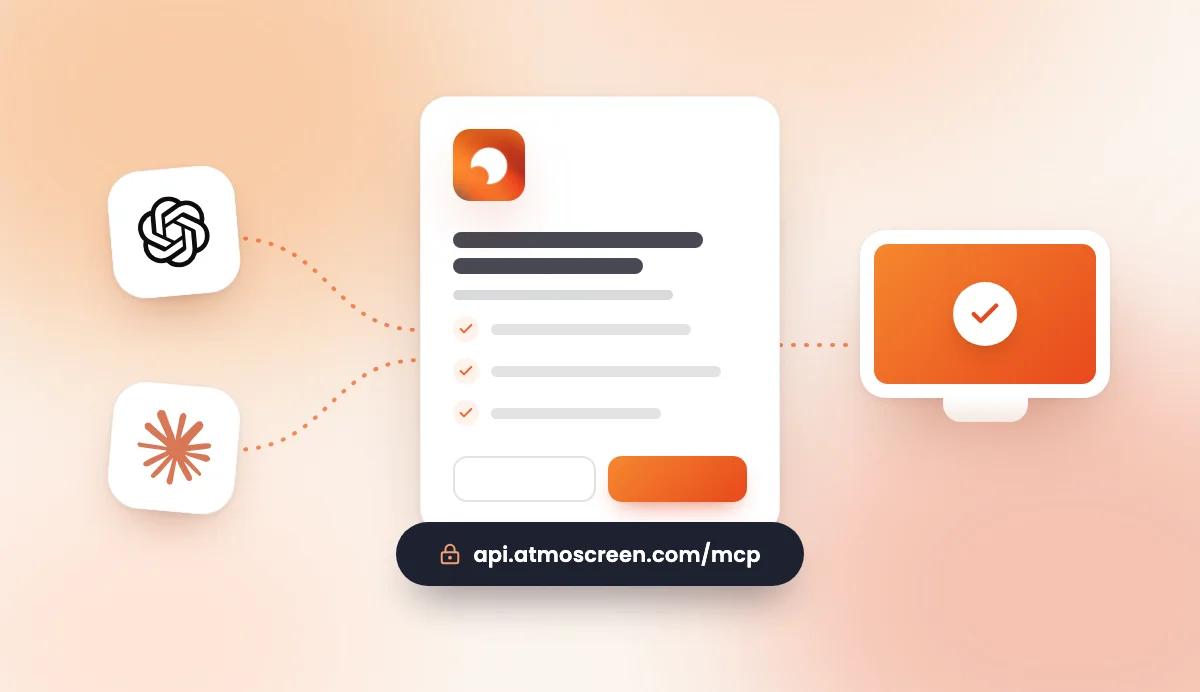
AtmoScreen can now be managed from ChatGPT and Claude: you ask in one sentence for what you want to show, the assistant creates the diffusion and sends it to your TVs. This guide walks you through the connection step by step for each assistant, explains what the consent screen shows, how to disconnect AtmoScreen and what to do if something gets stuck. Allow about two minutes.
Before you start
You need three things:
- An AtmoScreen account with an active subscription or the 7-day free trial. Without a subscription, the assistant can connect but won't be able to do anything on your account.
- At least one paired TV. The assistant manages the screens already linked to your account. If you haven't done it yet, follow our guide for an Android Smart TV or for an Amazon Fire TV Stick.
- A Claude or ChatGPT account. In Claude, AtmoScreen is right in the connectors directory. In ChatGPT, you currently need a plan that lets you add a custom app.
For ChatGPT, or to add AtmoScreen by hand in Claude, keep the AtmoScreen server address handy:
https://api.atmoscreen.com/mcp
AtmoScreen is available in Claude's official connectors directory: just search for it by name. It's coming to the ChatGPT directory soon; in the meantime, the method below (a custom app) works today.
Connect AtmoScreen to ChatGPT
Step 1: turn on developer mode
- In ChatGPT, open Settings, then Apps.
- Open Advanced and turn on developer mode.
If the option doesn't appear, your ChatGPT plan doesn't allow custom apps yet.
Step 2: create the AtmoScreen app
- Still in Apps, click Create app.
- Give it a name, for example AtmoScreen.
- Paste the server address:
https://api.atmoscreen.com/mcp. - For authentication, choose OAuth, then confirm.
Step 3: connect your AtmoScreen account
- Click Connect. ChatGPT opens the AtmoScreen sign-in page.
- Sign in with the email address and password of your AtmoScreen account.
- On the consent screen, check the access requested, then click Allow.
Step 4: make your first request
Open a new chat. If ChatGPT doesn't offer AtmoScreen on its own, select it from the + button in the message box. Then ask, for example:
Which AtmoScreen screens are on?
The AtmoScreen in ChatGPT guide repeats these steps with example requests.
Connect AtmoScreen to Claude
Step 1: find AtmoScreen in the directory
- In Claude, open Settings, then Connectors.
- Click Browse connectors and search for "AtmoScreen".
- Open the AtmoScreen listing.
AtmoScreen doesn't show up? On some Team or Enterprise accounts, an admin has to allow it first. You can also add it by hand: in Connectors, click Add custom connector, name it AtmoScreen and paste the address https://api.atmoscreen.com/mcp.
Step 2: connect your AtmoScreen account
- Click Connect.
- Sign in with your AtmoScreen account.
- On the consent screen, click Allow.
Step 3: make your first request
Open a new chat and check that AtmoScreen is turned on in the tools menu of the message box. Then ask:
Which AtmoScreen screens are on?
The AtmoScreen in Claude guide repeats these steps with example requests.
What the consent screen shows
Whichever assistant you use, the connection ends on an AtmoScreen page titled "Allow ChatGPT to access your AtmoScreen account?" (or Claude). It states that the assistant will be able to act on your account when you ask it to, and lists exactly how:
- see your screens and what they show;
- see, create and edit your diffusions and their slides;
- assign a diffusion to your screens.
The page also reminds you what the assistant won't be able to do: access your payment details or your password, or delete your account. It can't delete your screens or your diffusions either.
Two buttons: Deny cancels the connection, Allow confirms it and sends you back to the assistant.
What you can do once connected
The assistant has five actions:
- List your screens, with their status (online or offline) and the diffusion they show.
- List your diffusions and the content of each of their slides.
- Create a diffusion from a description: weather, messages, team, QR code, quiz, cinema listings.
- Edit a diffusion: rename it, add, remove or reorder slides.
- Show a diffusion on one or more screens. The TVs update within seconds.
Your plan's limits apply: Starter includes 1 screen, 1 diffusion and the essential templates; Premium 10 screens, 10 diffusions and every template (QR code, quiz, cinema). Photos and videos are uploaded in the AtmoScreen app, not from the chat.
For inspiration, browse our example prompts by sector.
Disconnect AtmoScreen
You can remove access at any time, and the assistant loses it immediately:
- In ChatGPT: Settings, Apps, choose AtmoScreen, then Disconnect.
- In Claude: Settings, Connectors, choose AtmoScreen, then Disconnect.
Your screens and diffusions stay intact: only the link with the assistant is cut. To restore it, just click Connect again.
Troubleshooting
The assistant says your account has no active subscription
The assistant is connected, but your AtmoScreen account has no current subscription (for example after the free trial ends). Choose a plan in the AtmoScreen app, then ask again: there's no need to reconnect the assistant.
The connection doesn't go through
- Use exactly the same email address and password as in the AtmoScreen app. Forgot your password? Reset it from the app's sign-in page.
- If the page shows "Request expired", the authorization request took too long: start the connection again from ChatGPT or Claude.
- Check that the server address is complete, with no extra space or trailing slash:
https://api.atmoscreen.com/mcp.
The assistant doesn't see my screens
The assistant only sees TVs already paired to your account. Start by installing AtmoScreen on your TV and entering the pairing code in the app. Also check that you connected the assistant with the right AtmoScreen account, if your practice has several.
The assistant mentions a plan limit
Your request goes beyond your plan: a second diffusion or a second screen on Starter, or a QR code, a quiz or cinema listings, which are Premium only. The assistant tells you so; upgrade to Premium in the app if you need it.
The screen hasn't changed
Ask the assistant: "Which screens are offline?". An offline TV (switched off, unplugged, no Wi-Fi) picks up the new version as soon as it reconnects.
One last tip
Never put health data or information about your patients in your slides or in your requests: the information AtmoScreen returns to the assistant is processed by OpenAI or Anthropic under their own terms.
Go further
- Find out everything that changes now AtmoScreen is in ChatGPT and Claude.
- See our prices and plans to choose between Starter and Premium.
- Stuck on something this guide doesn't cover? Contact our team.
- No account yet? Start your 7-day free trial.